Owners see the whole business.
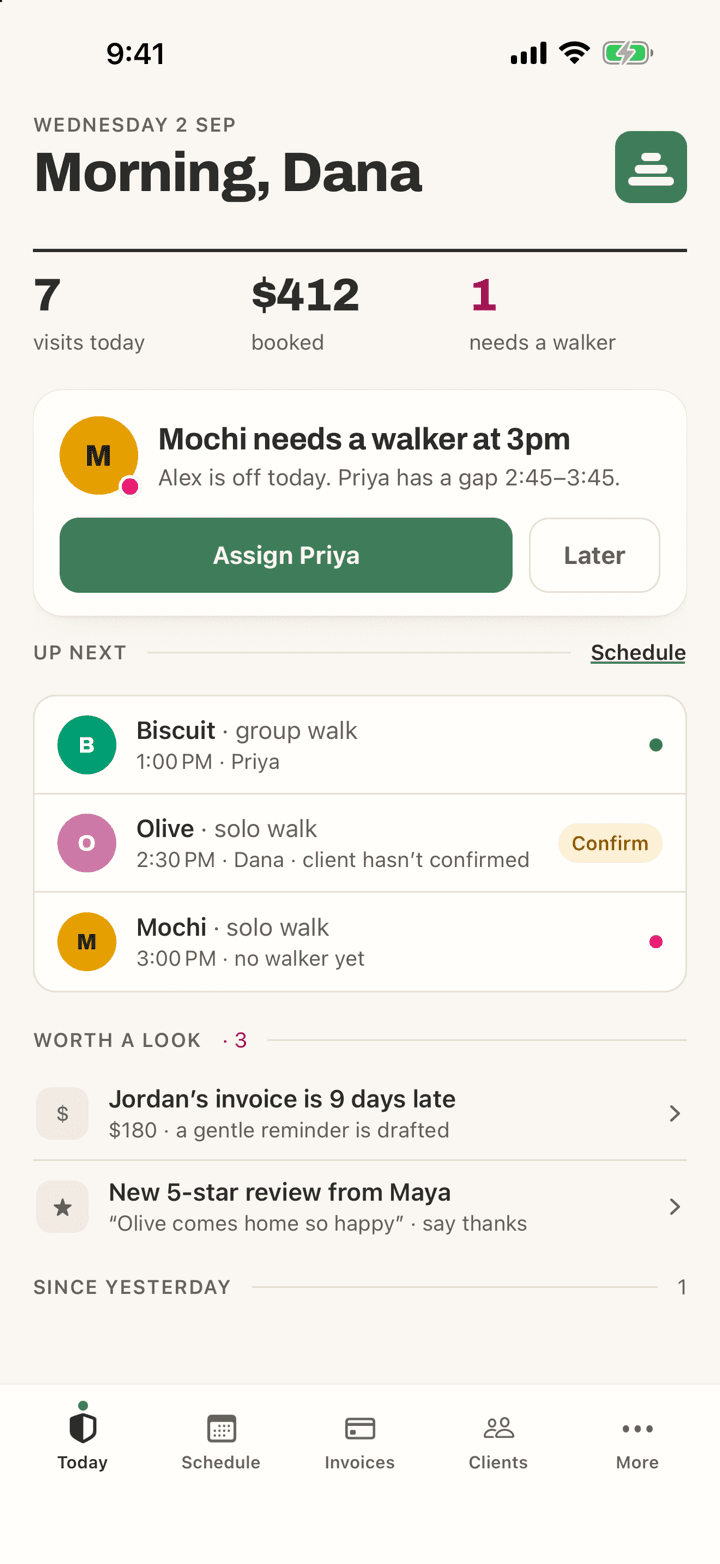
The schedule, every client and dog, the team, invoices, and revenue, from a laptop or a phone.
- Assign walks and approve requests
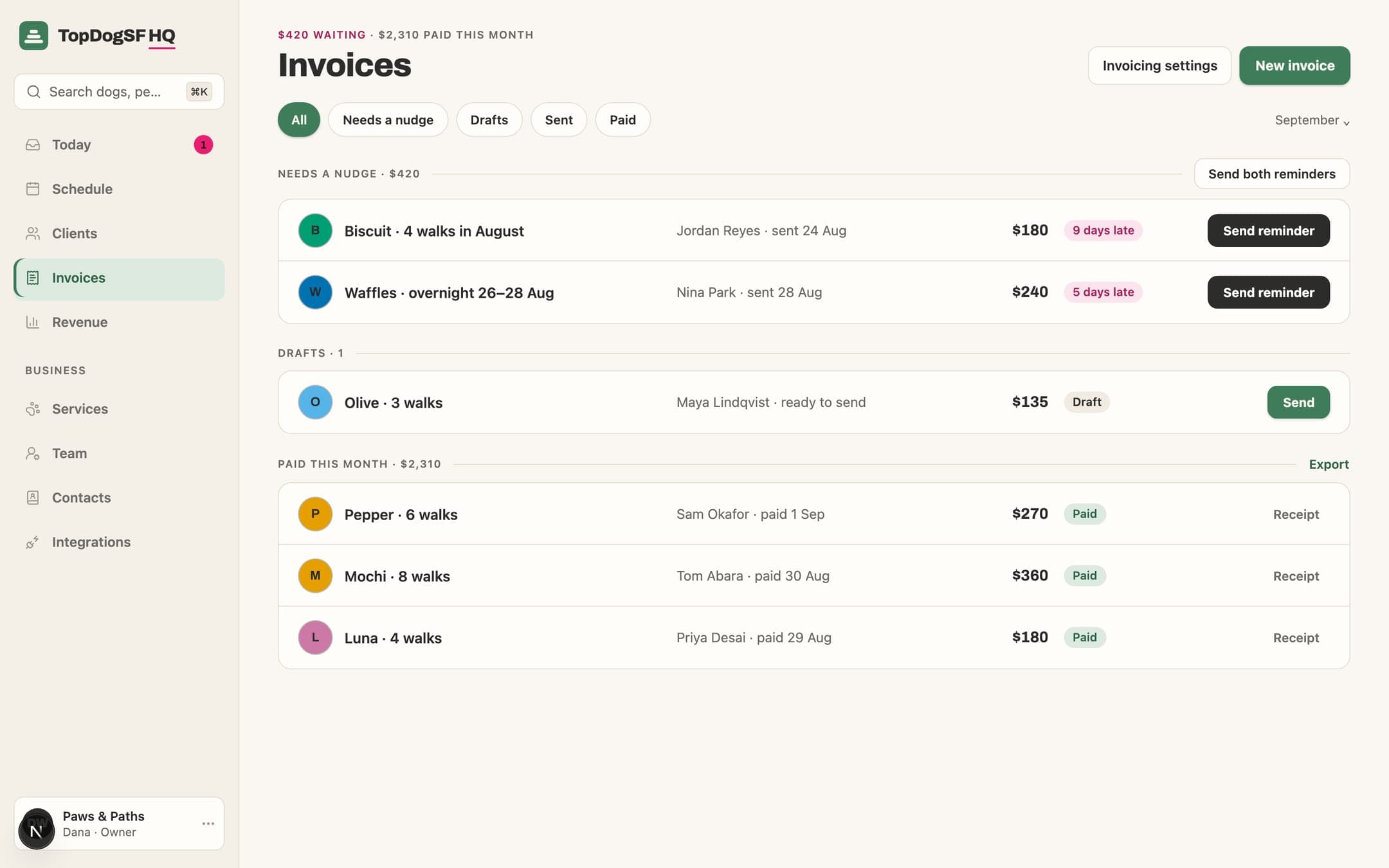
- Send invoices and reminders
- See revenue by month, service, and walker
How it works
Follow one day from the morning feed to the last invoice, with your walkers and clients on the same schedule.
Every screen below is the product as it ships today.
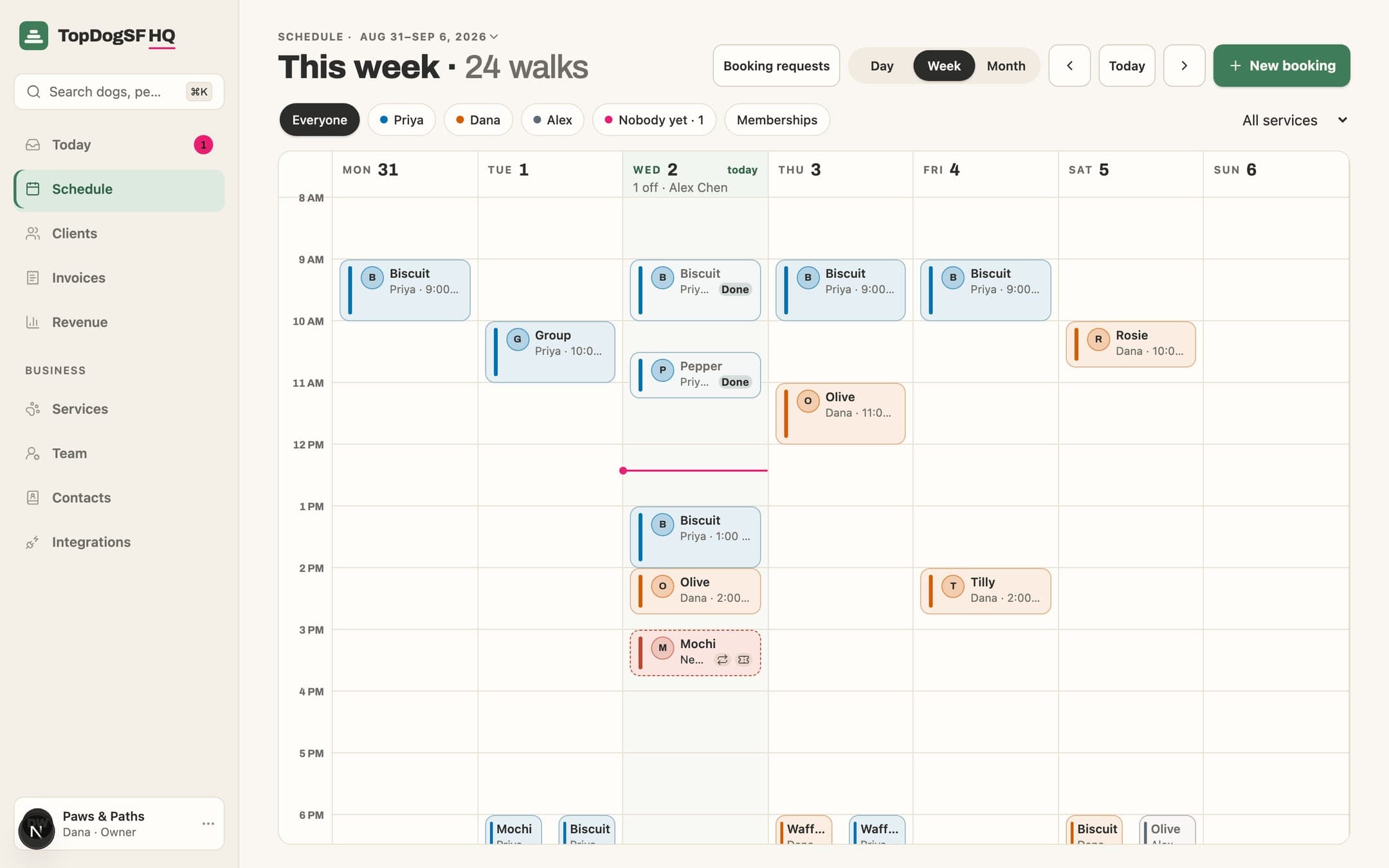
6:45 am
The morning feed lists the walks with no walker, the invoices past due, and the requests waiting for a yes. You handle each one right there.
7:30 am
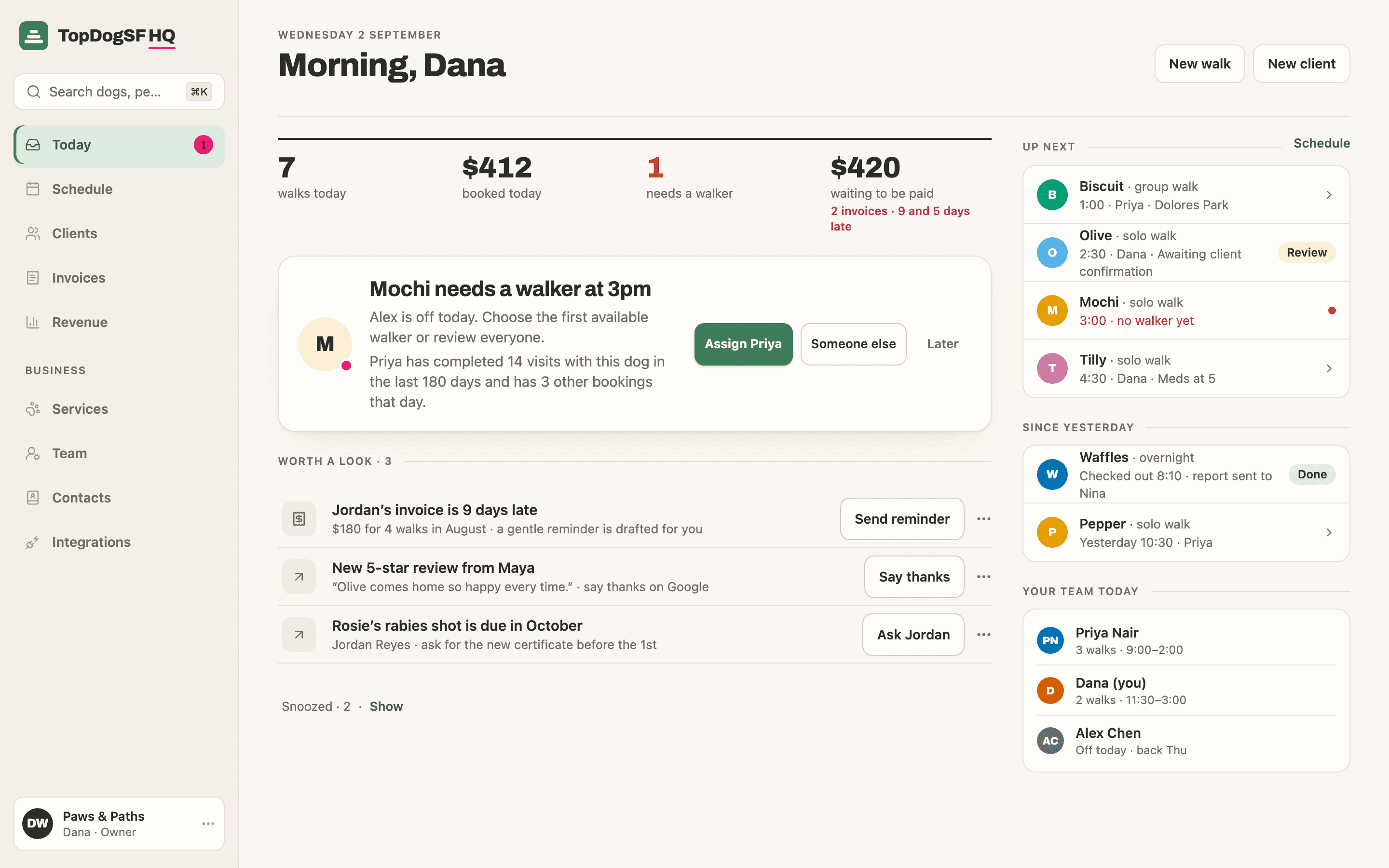
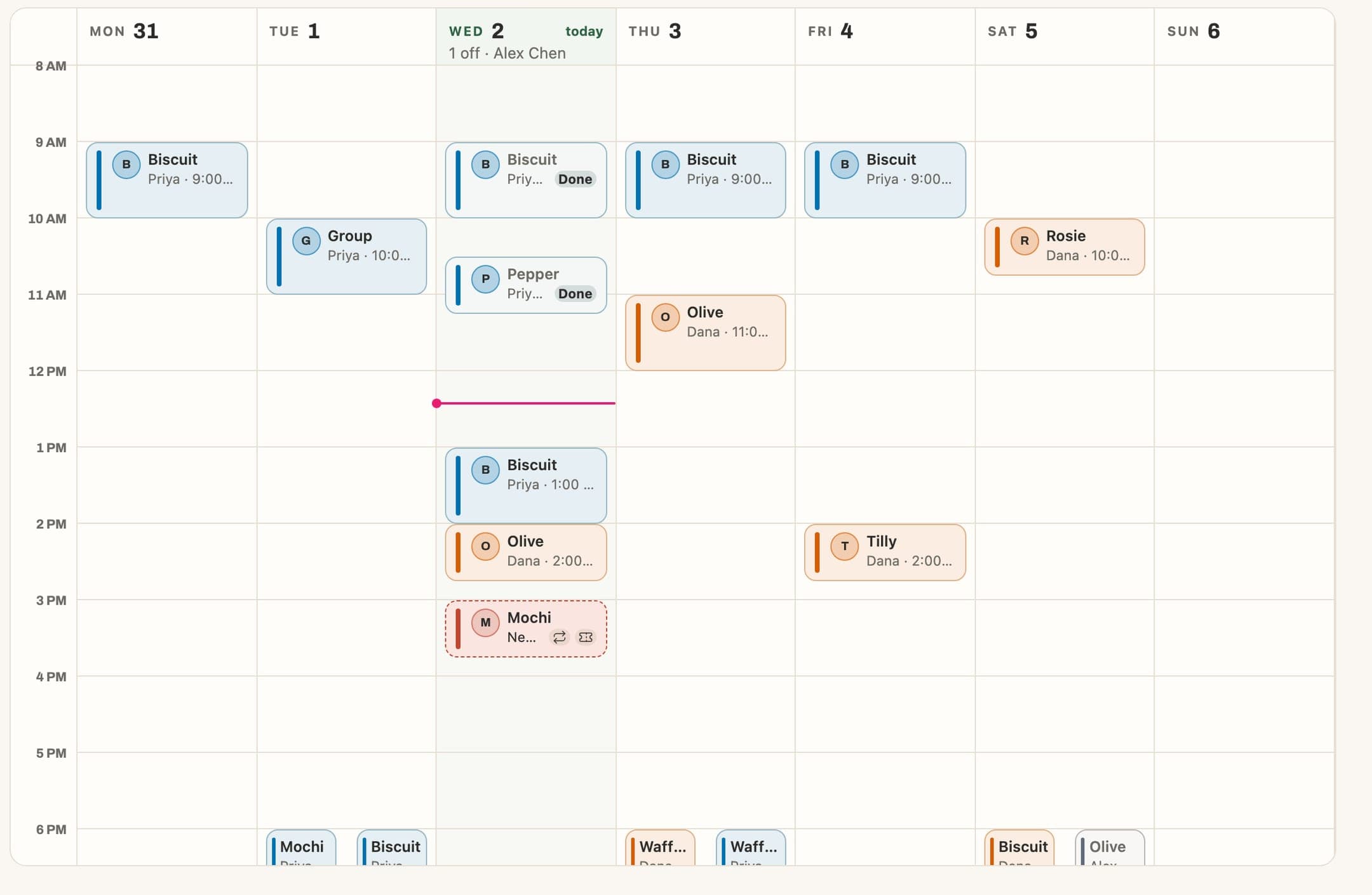
Repeat bookings, overnight stays, and group walks sit on one color-coded week. Drag a walk to move it, or filter by walker to see one person's day.
8:00 am
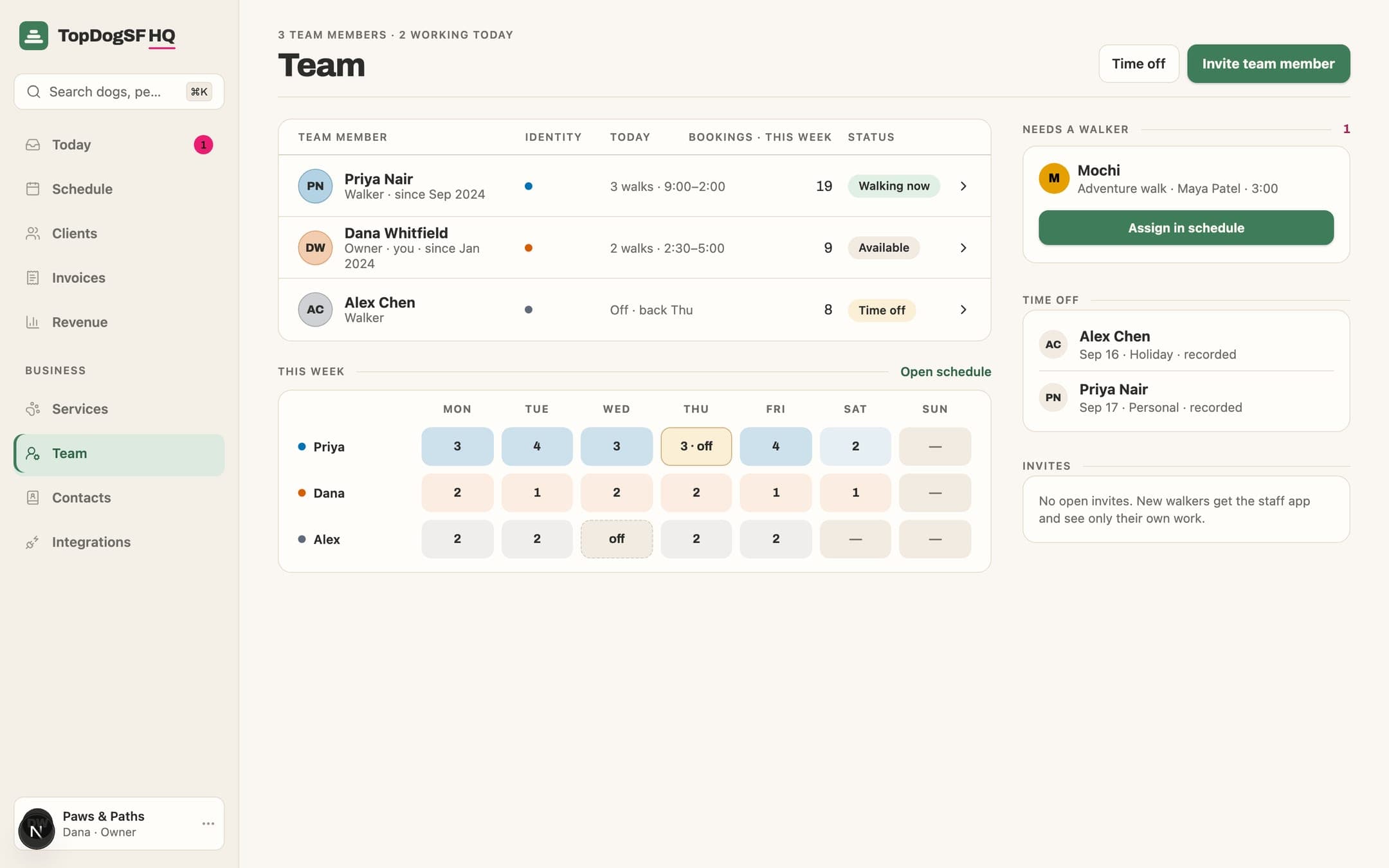
Invite walkers by email. The team page shows who is working today, who is off, and the walk that still needs a name.
9:00 am
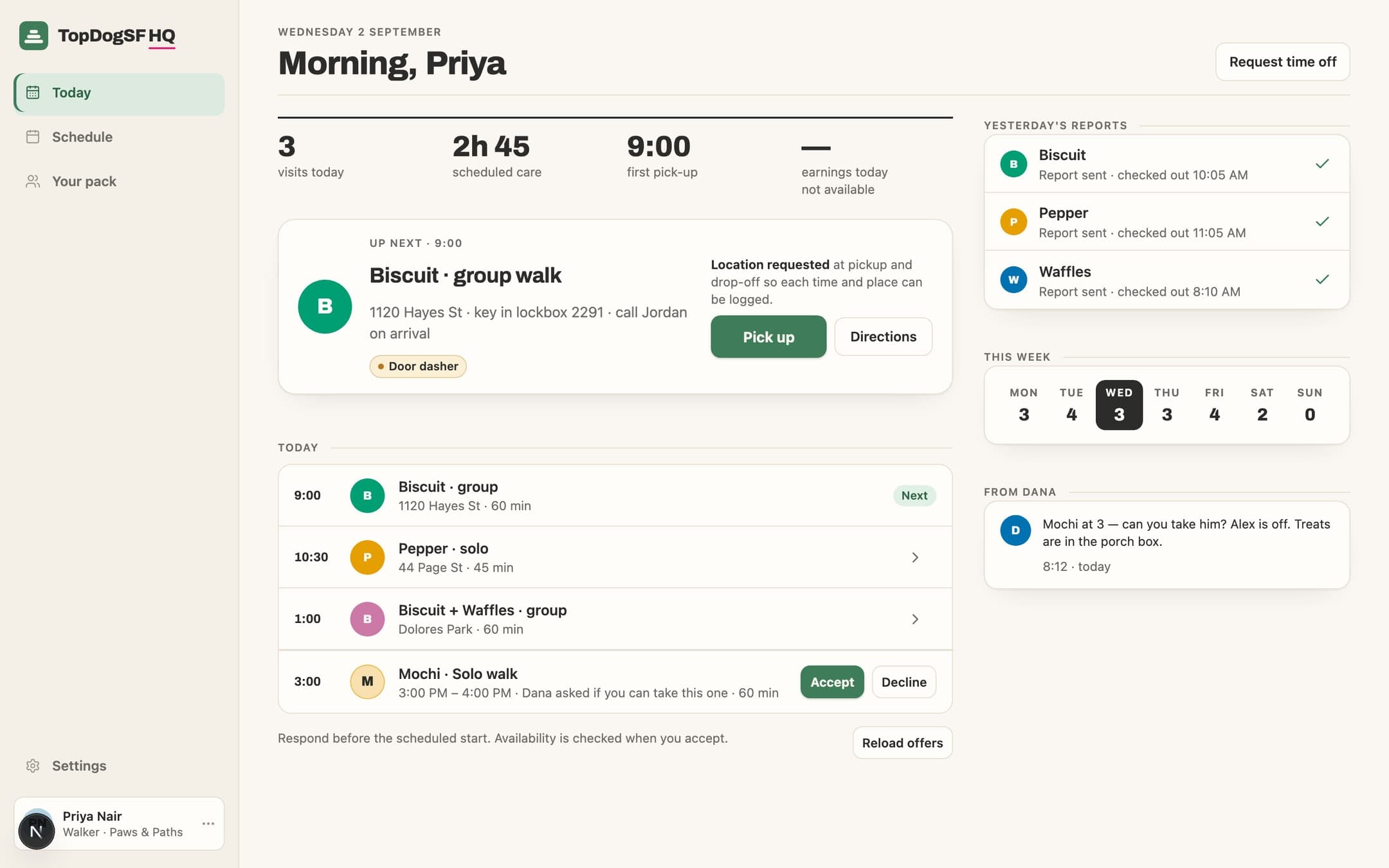
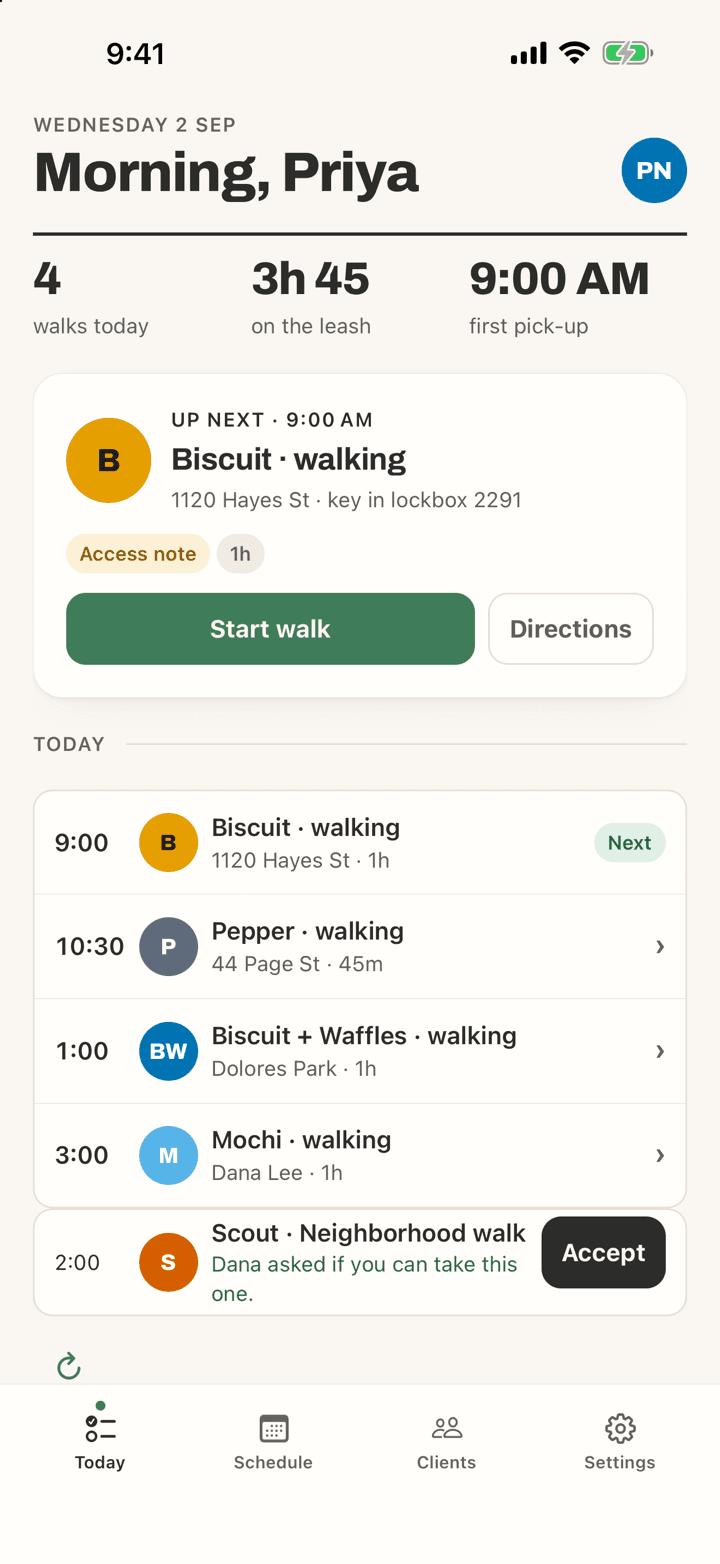
A walker sees only their own walks and clients, with the access notes for each pickup. They check in, send a photo report card when the visit ends, and never see an invoice.
10:15 am
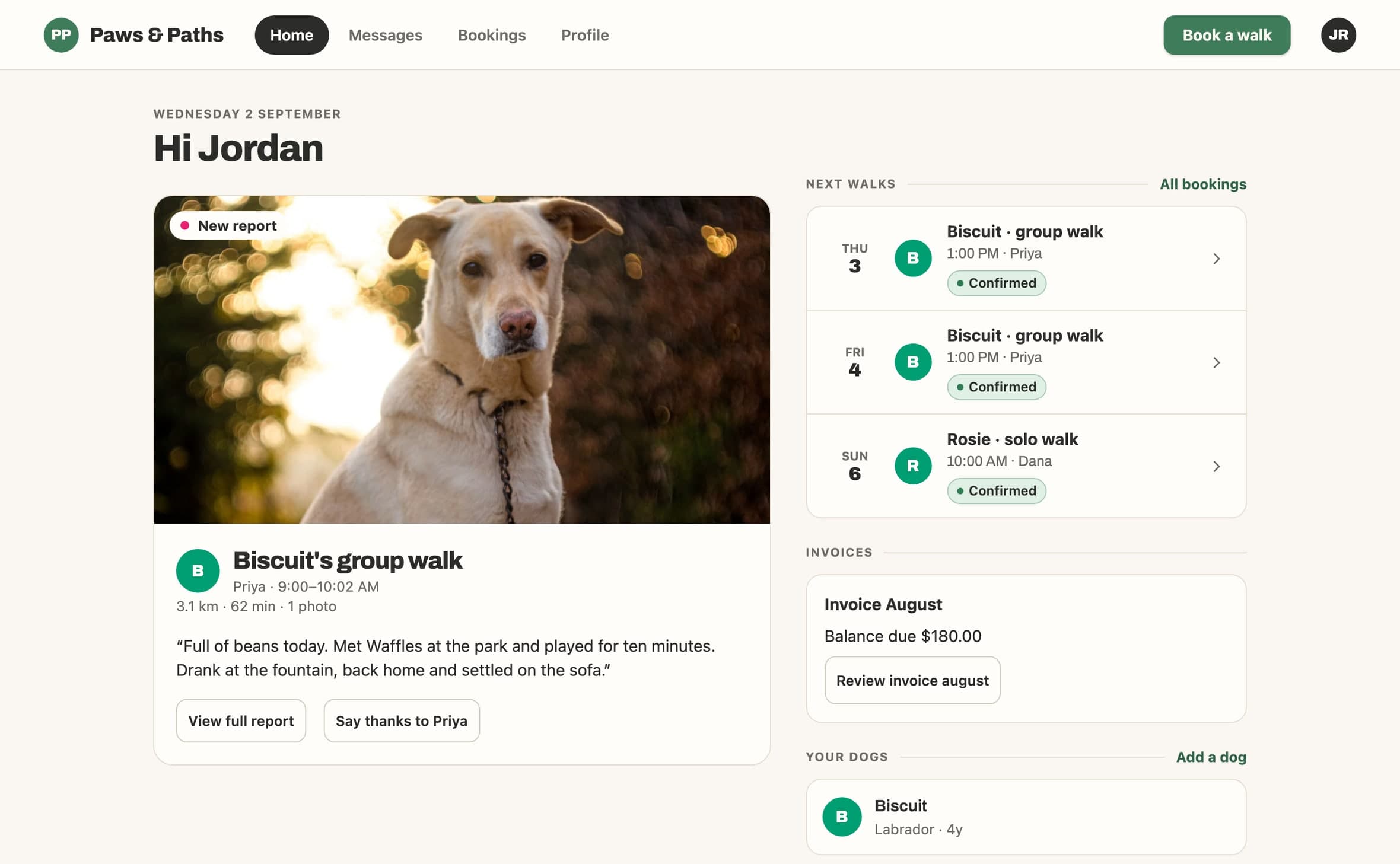
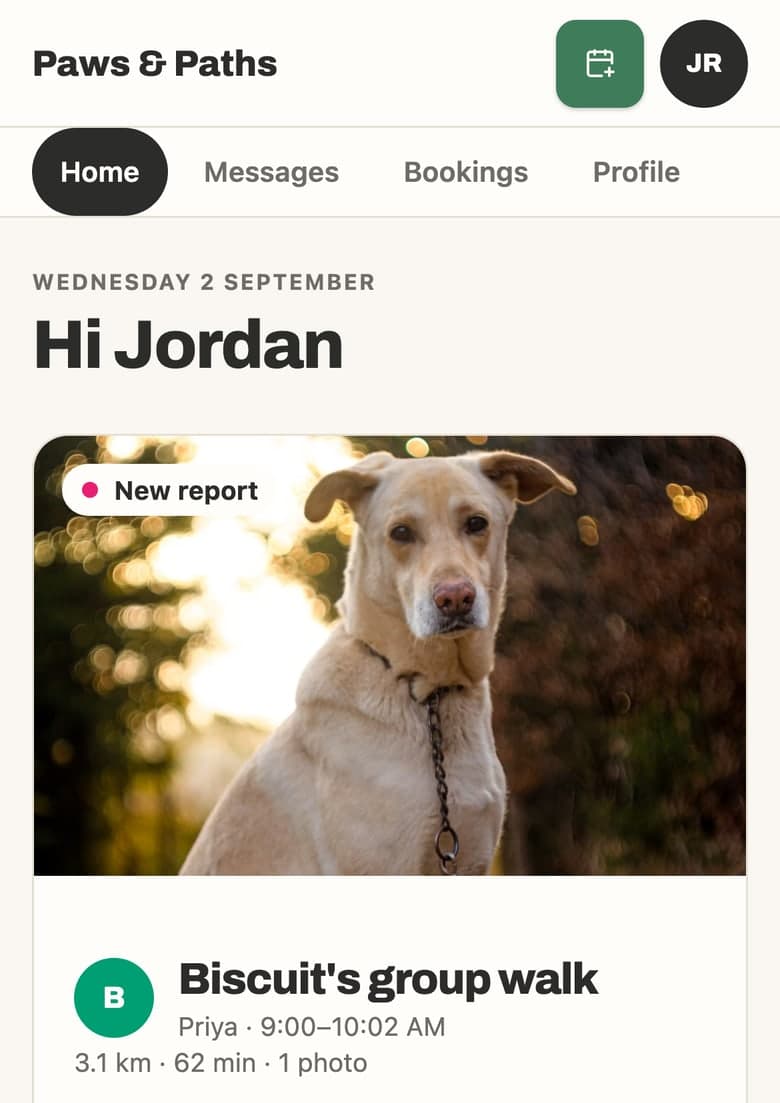
Each client has a portal under your business name. The walk report lands there, with walking time and distance for the services you track. They request walks and pay from the same place.
Month end
Send invoices with your own pay link and let the reminders chase the late ones. Memberships, deposits, and holiday rates are built in.
Any time
Paid revenue by month, by service, and by walker, next to the invoices still waiting to be paid.
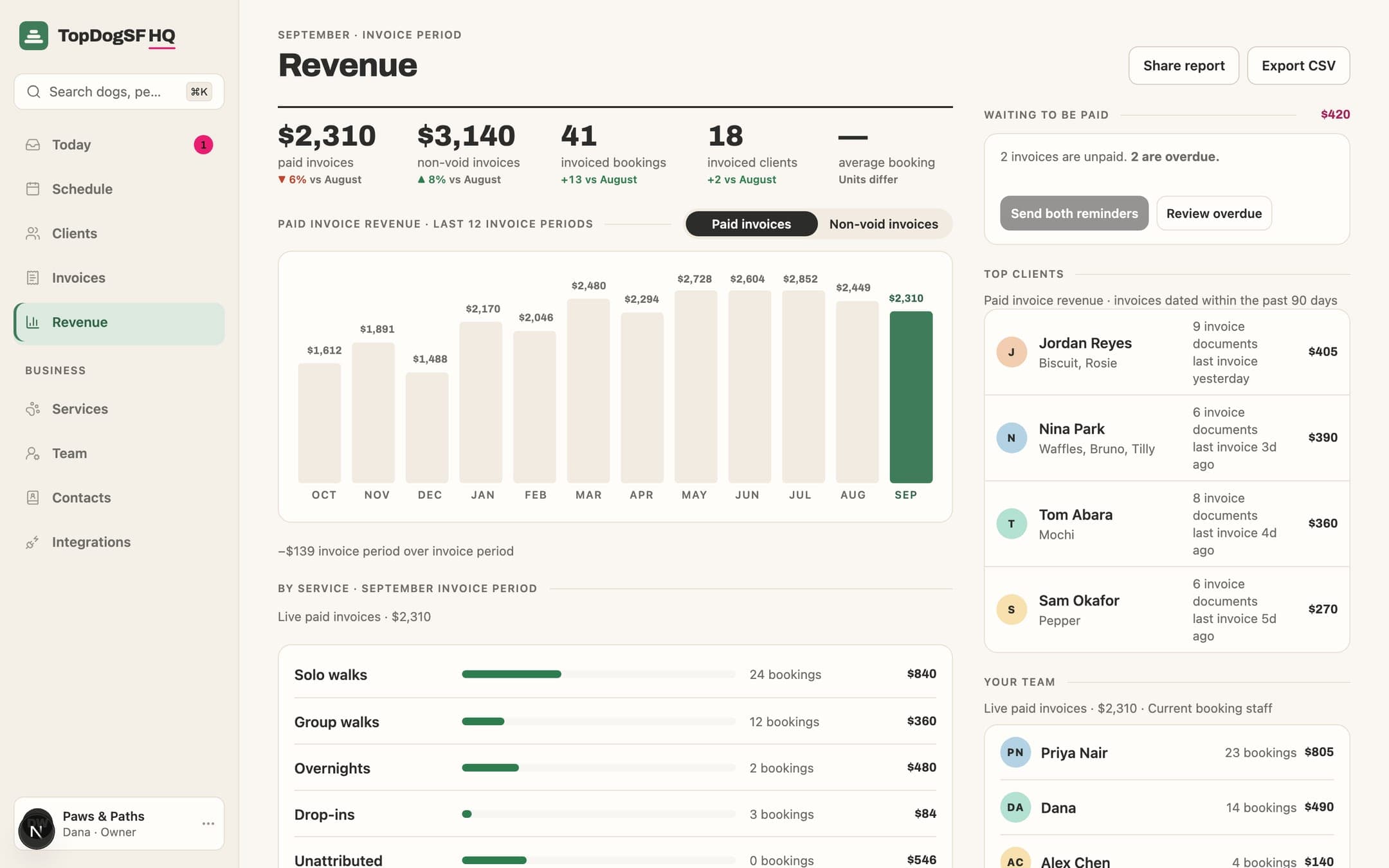
Screens from TopDogSF HQ, with example data.
Owners, walkers, and clients each see the part that is theirs, and nothing else.
The schedule, every client and dog, the team, invoices, and revenue, from a laptop or a phone.
Today's walks, the access notes, and the report form. No invoices, no revenue, no other walkers' clients.
Reports, bookings, invoices, and one message thread with you, in a portal under your business name.
Coming soon to the App StorePhone screens are from the iPhone app. The portal and the web app work on any phone today.
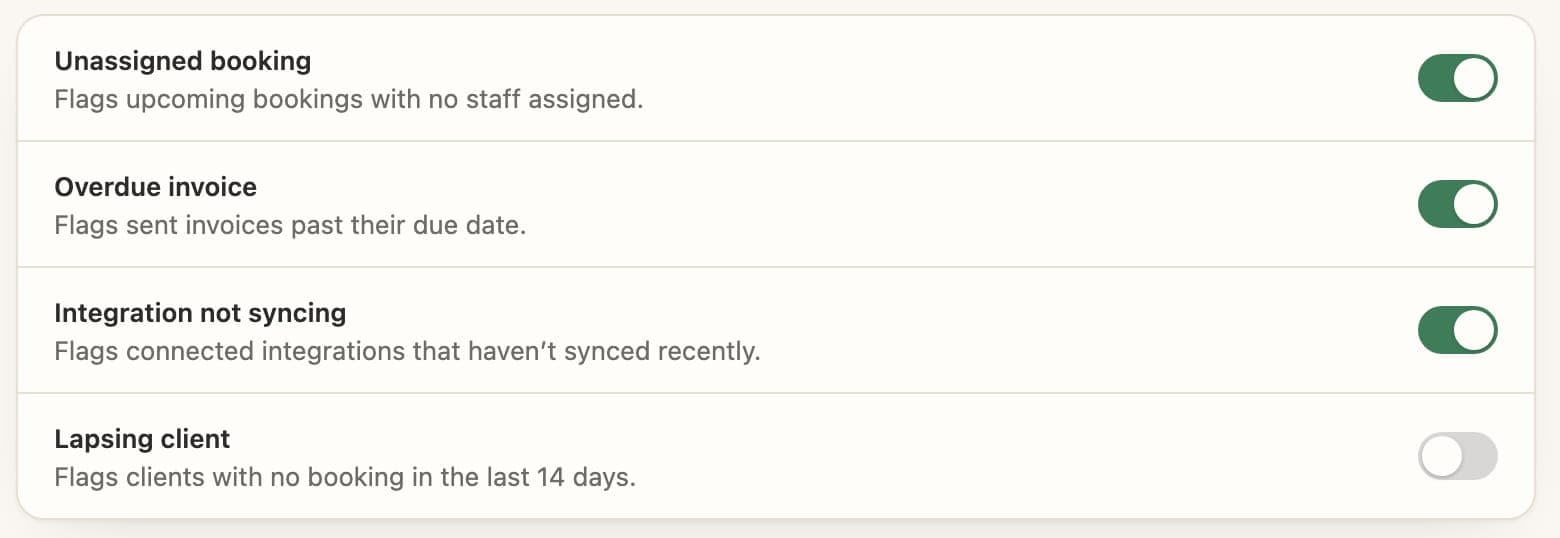
It watches for a walk with no walker, an invoice past due, a connection that stopped syncing, and a client who has gone quiet. Each flag says what happened, why it matters, and drafts the message.
You copy and send. HQ never sends for you.
Your two free months start the day you sign up. Nothing is charged unless you add a card later.
Connect Time To Pet to import your clients and dogs, or paste a client's message and HQ creates their record.
Walkers get an email invite. Clients get a sign-up link that collects their details and your signed waiver.
Time To Pet and GoHighLevel connect today. Gingr and Google Calendar are coming soon. See the integrations
No. HQ flags what it sees and drafts the message. You copy and send it. Nothing goes to a client or a walker without you.
No. A walker sees their own walks, the clients on those walks, and the report form. Invoices, revenue, and other walkers' clients stay with the owner.
Yes. HQ runs in the browser on any phone or laptop. The iPhone app for owners, walkers, and clients is coming to the App Store.
No. HQ reads your client contacts from Time To Pet with your API key and never writes anything back. Keep both running for as long as you like.
Two free months, no card. Bring your clients over and see your own day laid out.